



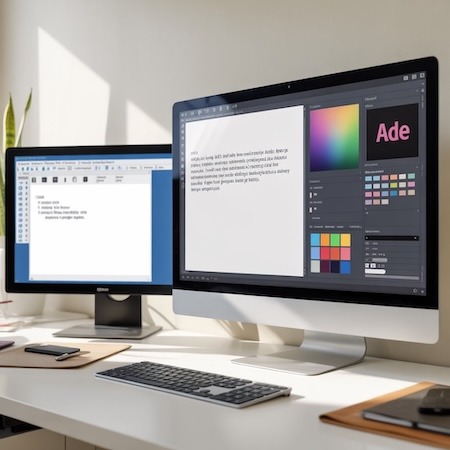

Can a print file be prepared in Word? In theory – yes. In practice – it’s an easy way to problems. Although text documents with a .docx extension are popular and convenient, they are completely unsuitable for professional preparation of graphic materials. If you care about quality, consistency and a predictable end result, it’s worth knowing why a print file should be created differently.
In this article, we show you the 5 most common problems that result from working on Word, and suggest what to replace it with.
1. A print file without bleeds? Word doesn’t support them
One of the basic requirements for typesetting materials for printing is bleeds – that is, a margin of safety that ensures that important elements of the design do not disappear when the print is cut. Word doesn’t have native support for bleeds, and even if you “draw” them manually, no imposition system at a printing house will treat them correctly.
The solution: use programs such as Adobe InDesign or Affinity Publisher, which allow you to set bleeds in an automated way.
2. The colors in Word are RGB, and the file for printing must be CMYK
Word uses the RGB color space by default, designed for screens. Meanwhile, offset and digital printing require CMYK. Failure to convert can lead to significant color differences between the design and the finished print – especially with intense colors.
Note: RGB → CMYK color conversion does not work retroactively perfectly – it is better to design the project from scratch in the correct mode.
3. The print file must have embedded fonts
Word does not embed fonts automatically. If you send a file to a print shop and don’t include a specific font, production systems may override it with a default typeface. The result? A disjointed text layout, altered typeface and sometimes even incorrect characters.
With PDF/X files from DTP programs, fonts are automatically embedded, and the document retains its layout regardless of the computer.
4. Word can’t cope with layers, transparency and vector graphics
If your design contains graphics, backgrounds or transparencies, Word may encode them incorrectly in the PDF. This often leads to:
- “jagged” edges,
- strange borders around graphic elements,
- incorrect positioning of text.
Publication typesetting programs not only support transparency, but also allow full control over layers and the order of objects.
5. Professional print file must meet PDF/X standards
To be compliant with the printer’s requirements, the design should be saved in PDF/X-1a or PDF/X-4 format. This guarantees:
- Embedding all fonts and images,
- no external links,
- appropriate color space.
Word does not allow you to export to PDF/X. Even if you save the file as PDF, it may contain unacceptable errors in the printing process (e.g. links to cloud graphics, lack of transparency flattening, etc.).
Summary: A print file requires more than Word
Wondering if your project is ready for printing? If you created it in Word – the answer is: rather not. The point is not to give up on simple tools, but to be aware of their limitations.
Need help preparing your file for printing? Send us the project – we will check it and suggest the best solution. And if you want to have everything under control – work with professional tools from the very beginning.